GoPro Stabilization for Mac
Native Mac gyroscope stabilization for GoPro Hero 8 through Hero 13. Reads embedded GPMF telemetry. Apple Silicon-optimized. AI motion blur. Batch export. The native Mac App Store alternative to Gyroflow and to GoPro Player + ReelSteady.
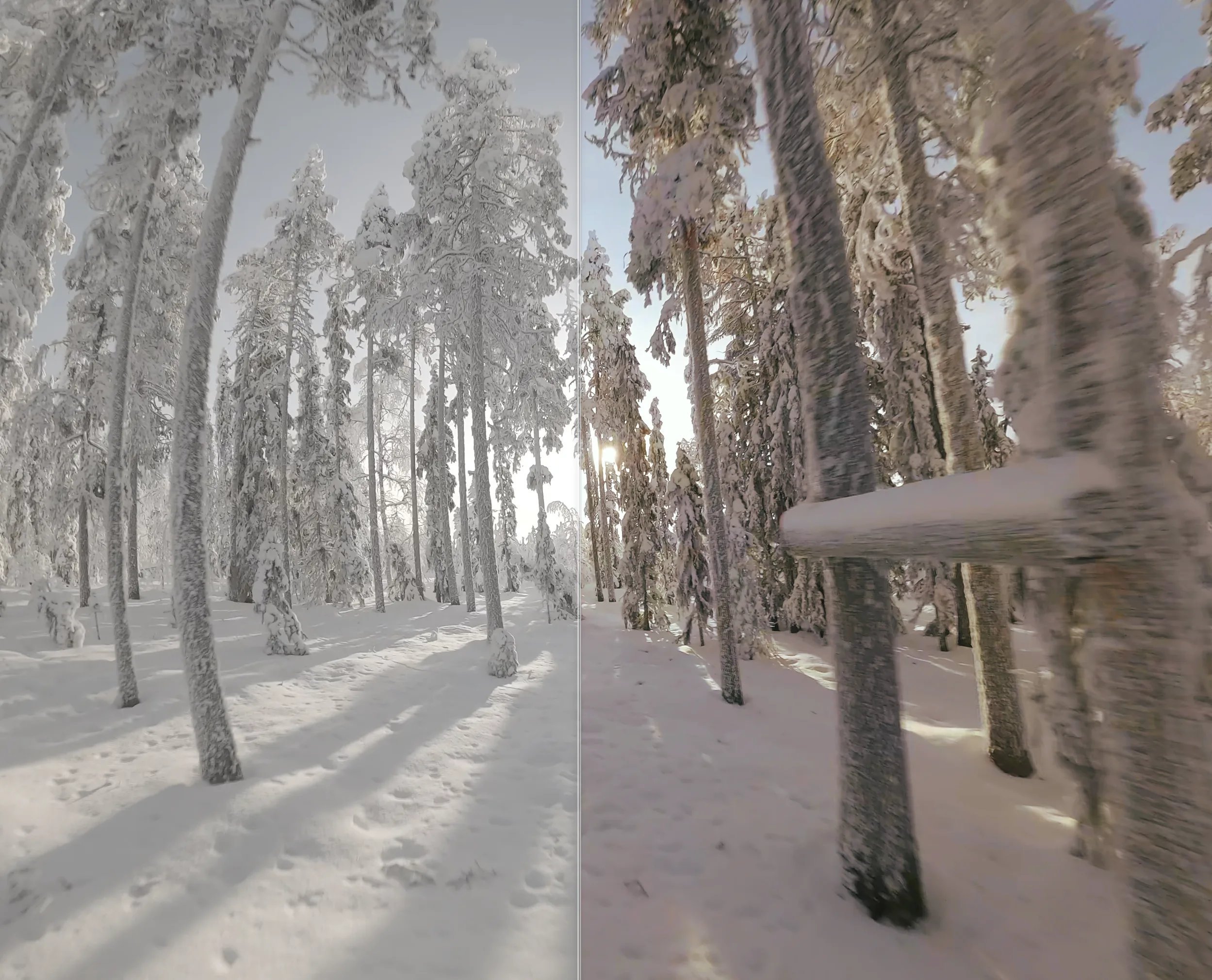
Why gyroscope stabilization beats optical
Most Mac video editors (iMovie, Final Cut, Premiere, DaVinci) stabilize by analyzing pixels frame by frame. That works on slow shots but breaks on fast pans, low light, or repetitive textures common in FPV and action footage. It also leaves rolling shutter wobble untouched.
Unshake takes a fundamentally different approach: it reads the gyroscope and accelerometer data your GoPro Hero already records into the .mp4 (the GPMF stream). With frame-accurate motion data, the stabilization knows exactly where the camera was pointed at every microsecond — no guessing from pixels. The result is gimbal-quality smoothness with zero false motion.
Supported GoPro models
- Hero 13 Black
- Hero 12 Black
- Hero 11 Black
- Hero 11 Mini
- Hero 10 Black
- Hero 9 Black
- Hero 8 Black
Hero 7 and earlier do not embed full gyro telemetry, so they're not supported. For Hero 8 and later, Unshake reads the GPMF stream directly — no setup, no calibration files, no plugins.
How it works
1. Drop the file
Drag your original GoPro .mp4 into Unshake. The app auto-detects the camera model and lens. No re-encoding required — Unshake reads the embedded gyro stream as-is.
2. Choose stabilization
Pick a smoothness preset (Reactive / Balanced / Stable) or set Sigma manually. Higher Sigma = smoother camera path, more cropping. Enable Horizon Lock for skiing, biking, or FPV.
3. Add AI motion blur (optional)
On Apple Silicon Macs running macOS 15.4 or later, enable AI Motion Blur to add cinematic 180° shutter blur on top of stabilized footage. Adjustable from 1× to 10× — 2× to 4× looks natural for most action footage.
4. Export
ProRes 422 (.mov), HEVC or H.264 (.mp4). Queue multiple clips and Unshake batches them on Metal GPU.
Works with HyperSmooth-baked footage
You don't need to disable HyperSmooth on your GoPro. Unshake handles both HyperSmooth-on and HyperSmooth-off footage. That said, recording at the widest sensor mode (4:3 / 8:7) with HyperSmooth off gives Unshake the most pixels to work with — typically a sharper, less-cropped result.
FAQ
Which GoPro models does Unshake support?
Hero 8, 9, 10, 11, 12 and 13. Hero 8 was the first GoPro to embed full GPMF gyroscope telemetry that Unshake reads.
Does Unshake work with HyperSmooth footage?
Yes — Unshake stabilizes both HyperSmooth-on and HyperSmooth-off clips. For maximum quality, record at the widest sensor mode (4:3 or 8:7) with HyperSmooth disabled.
How is this different from GoPro Player + ReelSteady?
GoPro's own app charges $100 to unlock ReelSteady stabilization. Unshake is on the Mac App Store, supports the full GoPro Hero 8-13 line plus DJI, Insta360 and RunCam in the same app, and adds AI motion blur, AI denoise, real-time preview and batch export.
What about Gyroflow?
Gyroflow is excellent and open-source. Unshake is the native Mac App Store alternative — same gyroscope approach, but Mac-native (Swift + Metal), with one-click install, automatic updates, and AI features Gyroflow doesn't have.
Do I need a calibration file?
No. Unshake ships built-in lens profiles for every supported GoPro model. The app picks the right profile automatically based on the file's metadata.